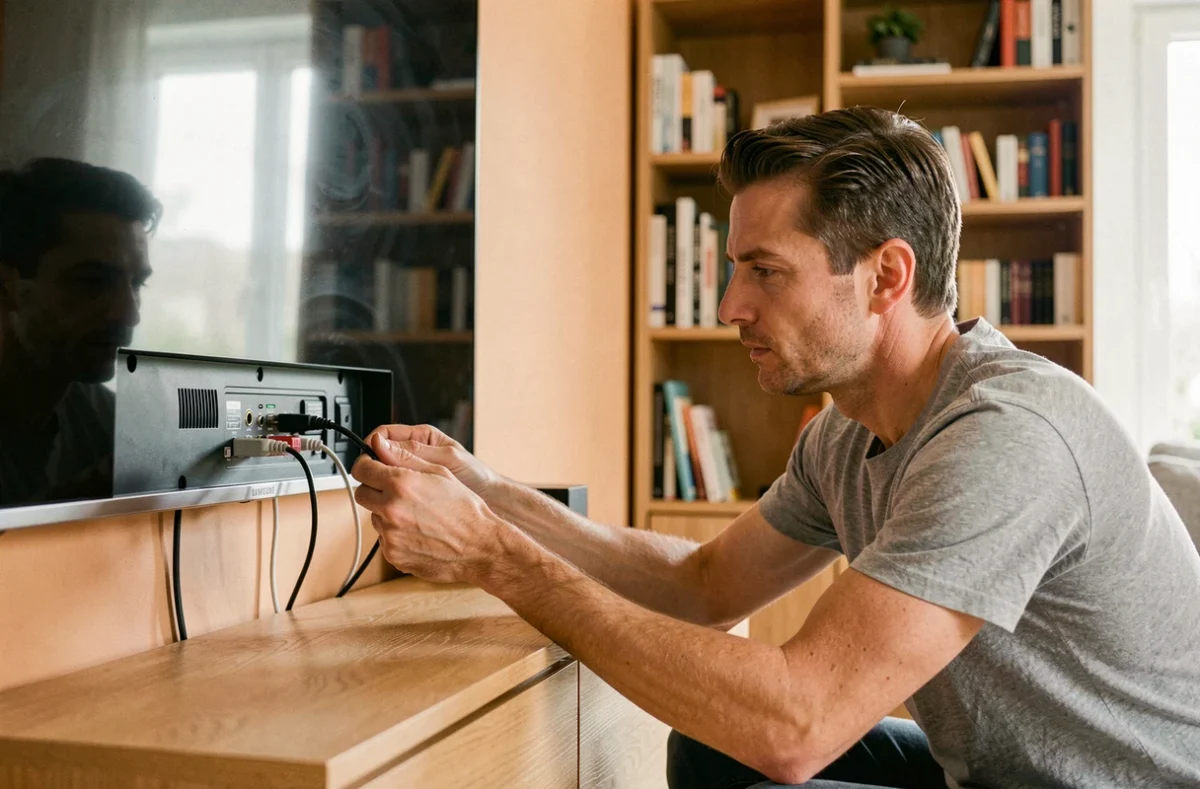
The Samsung TV displays “Connected, without Internet” while all other devices in the house are functioning normally. We have restarted Netflix three times, rebooted the box, checked the password: nothing. This scenario appears on the majority of forums, and the cause is rarely where we first look.
Before engaging in a lengthy procedure, we save time by quickly isolating whether the issue comes from the television, the router, or the network itself. This is the logic we follow here, starting from the quickest manipulation to more advanced settings.
Wi-Fi channel and frequency band on Samsung TV: the setting everyone forgets
When a Samsung TV no longer sees the network or disconnects randomly, we first think of the password or the distance from the router. The real culprit, in many cases, is the wifi channel configured on the router.
At 2.4 GHz, channel 6 is recommended by Samsung for its televisions. At 5 GHz, channels 36, 40, 44, or 48 offer the best compatibility. If the router is set to automatic selection, it may switch to a channel that the TV handles poorly, causing intermittent disconnections.
To check, we access the router’s administration interface (often 192.168.1.1) and manually force a compatible channel. This simple change often suffices to resolve wifi issues on Samsung TV without any further manipulation on the television side.
Another common trap: 6 GHz networks (Wi-Fi 6E). Most Samsung TVs do not detect 6 GHz networks, even the newer ones. If the router broadcasts only on this band, the TV will not find any available networks. It is necessary to enable a 2.4 or 5 GHz band in parallel.
WPA3 security protocol and Samsung TV: a common incompatibility
We update our router, enable WPA3 to enhance network security, and the next day the Samsung TV refuses to connect. This is not a coincidence.
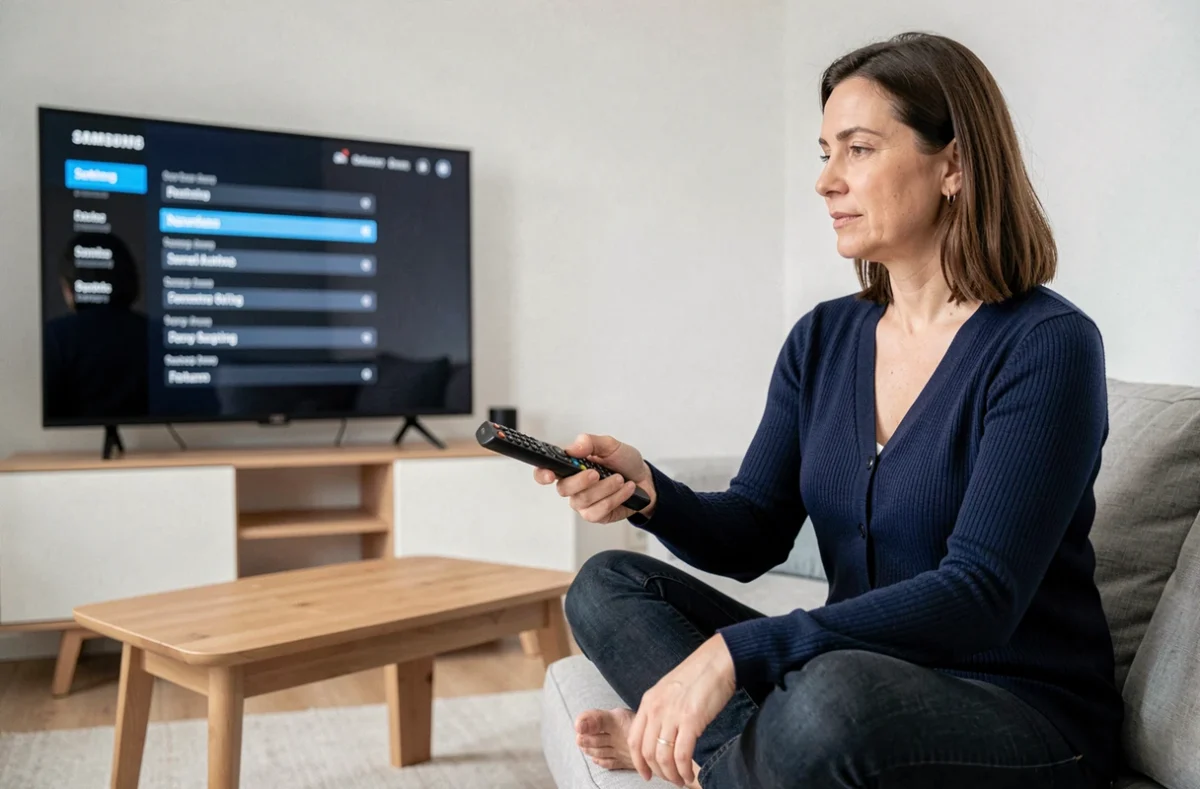
Some versions of Tizen (the operating system of Samsung televisions) do not reliably support WPA3 or mixed WPA/WPA2 modes. The network may appear in the list but the connection consistently fails after entering the password.
The most straightforward solution: temporarily switch the router to WPA2-Personal with AES encryption. We check that the TV connects, then adjust if necessary. This test takes less than two minutes and helps eliminate or confirm the hypothesis regarding the security protocol.
Network diagnostics on Samsung TV: separating local connection and Internet access
One point that classic guides often mix up: the connection to the router and Internet access are two distinct things. The TV may display an active wifi connection while being unable to reach streaming servers.
Test the local connection first
In the TV’s network settings (Settings > General > Network > Network Status), we launch a diagnostic. If the television is properly connected to the router but fails the Internet test, the problem lies between the router and the Internet service provider, not on the TV side.
Manually change the DNS
When the local connection works but the Internet remains inaccessible, a manual DNS server change often resolves the situation. We switch to manual IP configuration on the TV and enter a reliable public DNS. This manipulation forces the television to bypass a potential name resolution issue on the box side.
Network reset and Samsung firmware update
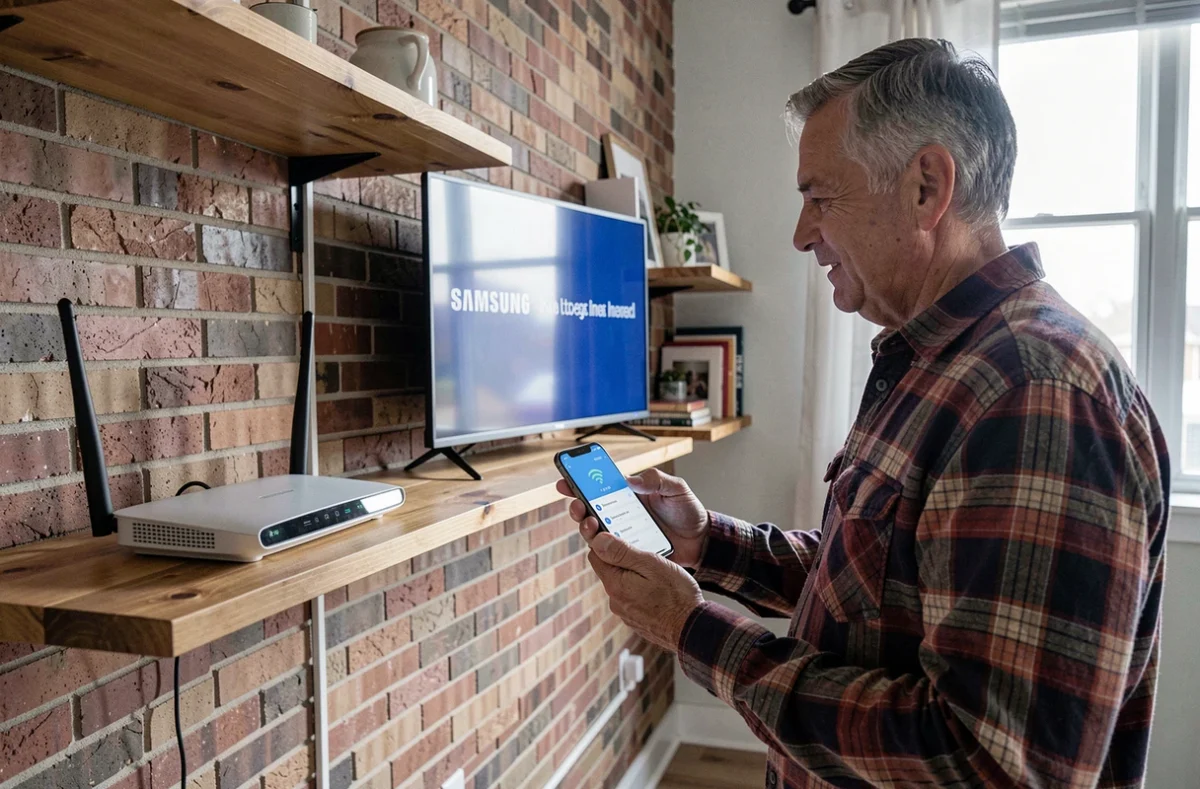
If the previous settings yield no results, we proceed to reset the network settings of the television. This operation erases saved networks, stored passwords, and custom IP configurations.
The path varies slightly depending on the models, but the option is generally found in Settings > General > Network > Reset Network Settings. After the reset, we reconnect the TV to the wifi using the appropriate settings (channel, frequency band, WPA2 protocol).
Before reconnecting, we also check that the firmware of the television is up to date. An outdated firmware version may contain network bugs that have since been fixed. If the wifi does not work at all, we can update via a USB stick by downloading the firmware from the Samsung website.
SmartThings and wifi: a frequent false diagnosis
When we control the TV via the SmartThings app and the connection seems lost, the problem is not always related to the TV’s wifi. The smartphone and the TV must be on the same local network. If the phone is connected to 5 GHz and the TV to 2.4 GHz on a router that separates the two bands, SmartThings will not see the television.
Samsung also recommends updating the SmartThings app, the phone system, and the TV firmware simultaneously to avoid version incompatibilities.
Quick checklist when the wifi cuts out on a Samsung TV
Before contacting technical support, we review these points in order:
- Restart the television and the router by physically unplugging them for a minute, not just turning them off with the remote
- Check that the router is broadcasting in 2.4 GHz or 5 GHz (channels 36, 40, 44, 48 in 5 GHz or channel 6 in 2.4 GHz) and not exclusively in 6 GHz
- Switch the security protocol to WPA2-Personal AES if the router is configured to WPA3
- Launch the built-in network diagnostic (Settings > Network > Network Status) to distinguish a local problem from an Internet problem
- Reset the TV’s network settings, then reconnect by manually entering the password
Feedback varies on the effectiveness of each step depending on the models and versions of Tizen. On televisions a few years old, changing the channel and switching to WPA2 resolves the vast majority of cases. On newer models, it is often a missing firmware update. In any case, separating local diagnostics from Internet diagnostics remains the most reliable reflex to save time.